My WordPress Site Was Hacked: Step-by-Step Recovery Guide
By Imran Hosain · · 8 min read
Finding out your WordPress site has been hacked is stressful, but it is fixable. Work through these steps in order. If you are not comfortable with any of them, ask your host or a developer for help, because a rushed cleanup can miss hidden code and the site gets hacked again.
Signs your site may be hacked
- Visitors are redirected to unfamiliar or spam sites
- Google shows a warning such as "This site may be hacked" or "Deceptive site ahead"
- Admin users you did not create, or files you do not recognize
- Strange pages or links in search results, often in other languages
- Your host suspends the account or reports malware
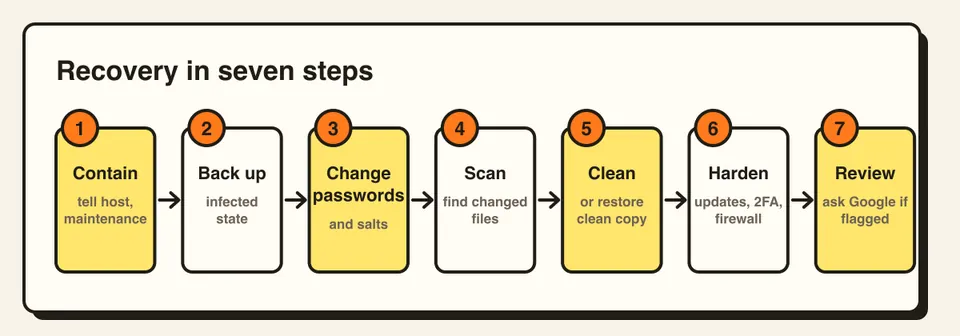
Step 1: Contain the damage
Contact your hosting provider, since many can help with scanning or restore from their own backups. If you can, put the site into maintenance mode or temporarily block public access while you clean it.
Step 2: Take a backup of the current state
Save a copy of the infected files and database. It is not for restoring, but you may need it to find out how the attacker got in.
Step 3: Change every password and key
- All WordPress admin and editor accounts
- Hosting control panel, FTP/SFTP and SSH
-
Database password (and update
wp-config.phpto match) - Email accounts connected to the site
-
Replace the security keys and salts in
wp-config.php. WordPress provides a generator athttps://api.wordpress.org/secret-key/1.1/salt/. This logs everyone out.
Step 4: Scan and find what was changed
Run a malware scan with your host's scanner or a security plugin such as Wordfence or Sucuri. If you have WP-CLI access, these commands compare files with the official versions:
wp core verify-checksums
wp plugin verify-checksums --all
Also check for unknown admin users, plugins you did not install, PHP files inside
wp-content/uploads, and odd rules in
.htaccess.
Step 5: Clean the site
You have two safe options:
- Restore a clean backup from before the infection, then update everything immediately. If you only restore, the original weakness is still there.
- Clean manually: replace WordPress core files with a fresh download, reinstall every plugin and theme from the original source, delete anything unknown, and remove malicious code from the database and uploads.
Delete unused plugins and themes entirely rather than only deactivating them.
Step 6: Close the door
- Update WordPress core, plugins and themes
- Remove "nulled" or pirated themes and plugins, which often contain malware
- Turn on two-factor authentication and limit login attempts
- Give users only the roles they need
- Use a web application firewall
- Keep automatic off-site backups and test them
Step 7: Ask Google to review (if flagged)
If Google flagged your site, open the Security Issues report in Google Search Console, confirm you have fixed the problem, and request a review.
Prevention is cheaper than recovery
Most hacks come through outdated plugins, weak passwords or pirated software. Regular updates, backups and monitoring prevent most of them. That is exactly what my care plans cover.
Frequently asked questions
Common signs are unexpected redirects, Google security warnings, unknown admin users or files, spam pages in search results, or your host suspending the account.
Not by itself. It removes the malware but not the weakness that let it in, so update everything and change all passwords straight away.
Most often through outdated plugins or themes, weak or reused passwords, and pirated software. Regular updates and strong logins prevent most attacks.