WordPress Maintenance: What a Plan Includes and Why Your Site Needs One
By Imran Hosain · · 6 min read
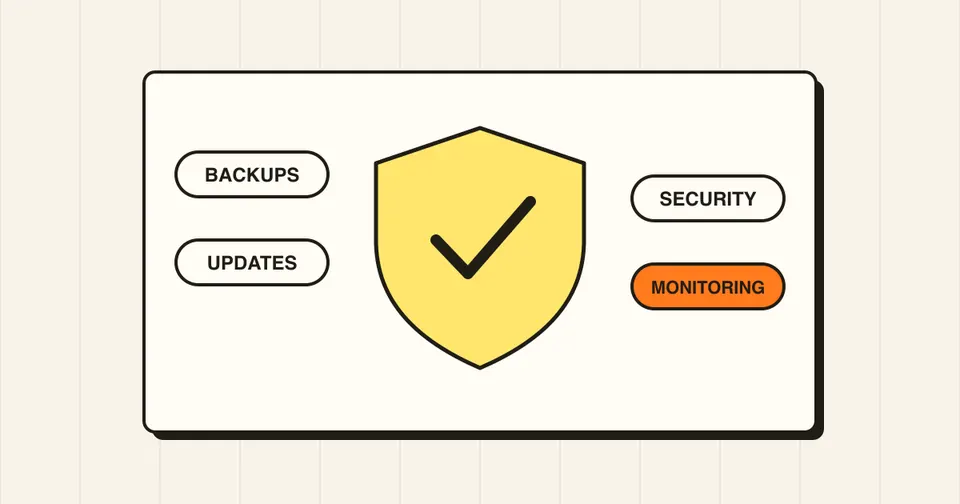
A WordPress site is not a one-time purchase. WordPress core, themes and plugins release updates all the time, many of them security fixes. Skipping them is how most avoidable problems start. This guide explains what WordPress maintenance includes and how to decide if you need a plan.
Why WordPress needs ongoing maintenance
- Security: Most reported WordPress vulnerabilities are found in plugins and themes, not in WordPress core. When a fix is released, attackers also learn about the flaw, so outdated plugins are a common way in.
- Stability: A new PHP version or plugin update can break a layout or a form. Someone has to catch that before your customers do.
- Speed: Databases fill with old data and caches go stale, so sites slow down over time.
- Recovery: When something does go wrong, a recent, tested backup turns a disaster into a short delay.
What a good maintenance plan includes
1. Updates, tested first
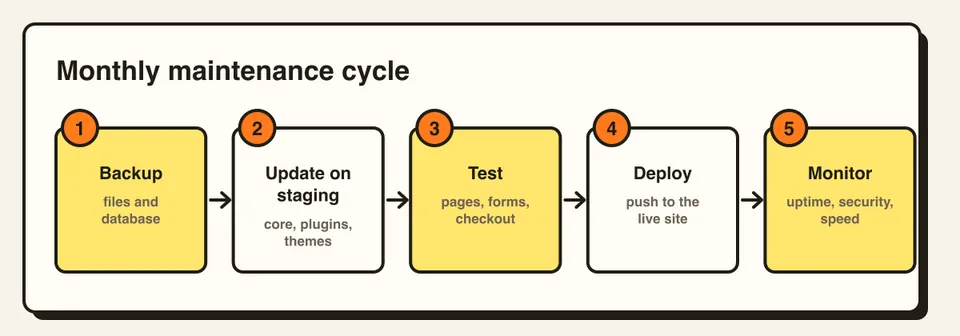
WordPress core, plugins and themes should be updated regularly. On a business site, each update is best tested on a staging copy first, then pushed live. WordPress already installs minor security releases of core automatically by default, but plugin and theme updates usually need a person to review them.
2. Backups you have actually tested
Backups should run automatically, be stored away from your web server, and include both files and the database. A backup you have never restored is only a hope. Good maintenance includes checking that a restore works.
3. Security monitoring
This means malware scanning, a firewall, login protection (strong passwords, two-factor authentication, limited login attempts), and removing admin users who no longer need access.
4. Uptime and performance monitoring
An uptime monitor alerts you within minutes if the site goes down. Regular speed checks catch slowdowns, such as a new plugin adding heavy scripts.
5. Cleanup
Removing unused plugins and themes, clearing spam comments and expired data, and checking for broken links keeps the site lean.
6. Reports and support
You should know what was done each month and have a way to ask for help. Clarify what is included, such as small content edits or bug fixes, and what costs extra.
DIY or a maintenance plan?
If you are comfortable with WordPress, you can handle basic updates and backups yourself. A plan makes sense when the site brings in leads or sales, you do not want to risk breaking it, or you simply lack the time. The cost of a plan is usually small compared with the cost of downtime or recovering a hacked site.
Questions to ask before you sign up
- Are updates tested on staging before going live?
- Where are backups stored, and how often do they run?
- How fast do you respond if the site goes down?
- What happens if the site is hacked? Is cleanup included?
- Can I see what was done each month?
You can see what my plans cover on the care plans page.
Frequently asked questions
Check for updates at least weekly, and apply security updates as soon as you can after testing. Core, plugins and themes each release on their own schedule.
Automatic updates help, and WordPress applies minor core security releases by default. But plugin and theme updates can break layouts, so important sites benefit from testing on staging first.
It depends on the plan. Ask what is covered, such as small text changes or bug fixes, and what is billed separately.