How to Fix a Website Built With AI: A Practical Review Checklist
By Imran Hosain · · 7 min read
AI tools like Claude, Gemini and ChatGPT can produce a working website draft in an afternoon. That is useful, and I use them every day. But a site that looks finished is not always ready for real visitors, real customers and real payments. If you built your site with AI and it is slow, buggy or worrying you, this is the checklist I use to review and finish it.
Why AI-built sites often need a second pass
AI writes code that is plausible, not guaranteed to be correct. It does not see your live server, your plugins, your real traffic or your business rules. Common gaps are:
- Code that works in a demo but breaks with real data or edge cases
- Missing input checks and output escaping (a security risk)
- Heavy or duplicated code that slows pages down
- Layouts that look right on one screen but break on others
- Outdated or invented functions, because the AI guessed an API that does not exist or has changed
- No error handling, backups, or plan for updates
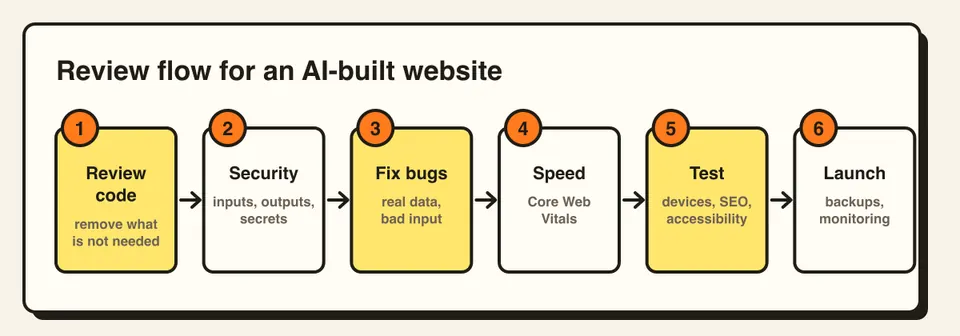
1. Review the code before anything else
Read what was generated, or have a developer read it. Look for code you cannot explain, unused files, copied snippets that conflict, and plugins or libraries added for tiny jobs. Remove what is not needed. Less code means fewer bugs and faster pages.
2. Check security
This is the most important step. In WordPress code, make sure every input is validated and sanitized, and every output is escaped when printed. Check that forms use nonces and that admin actions check user permissions. Make sure no passwords, API keys or tokens are written into theme files or front-end JavaScript. I explain the common mistakes in my guide on security risks in AI-generated code.
3. Fix real bugs, not just visible ones
Test every form, button, menu, search, cart and checkout step with real data. Try bad input too: empty fields, very long text, special characters. Check what happens when something fails, such as a payment error or a missing image. AI-generated code often handles only the happy path.
4. Make it fast
Run PageSpeed Insights and look at Core Web Vitals. Compress and resize images, remove unused CSS and JavaScript, delay third-party scripts, and set up caching. My WordPress speed guide covers the steps in order.
5. Test on real devices and browsers
Open the site on a real phone, a tablet and a laptop, and in more than one browser. Check text size, tap targets, menus and forms. Emulators miss things that real devices show.
6. Handle SEO and accessibility basics
- One H1 per page and a logical heading order
- Unique title and meta description on each page
- Descriptive alt text on images and labels on form fields
- A sitemap and a working robots.txt
- Good color contrast and keyboard-friendly navigation
7. Set up backups, staging and updates
Before launch, make sure automatic off-site backups run and a restore has been tested. Use a staging copy for changes. Plan how WordPress core, themes and plugins will be updated, since a site nobody maintains becomes a security risk. See what a maintenance plan includes.
8. Launch, then monitor
After going live, check forms and checkout again on the live domain, set up uptime monitoring and Google Search Console, and watch errors for the first few weeks.
Should you fix it yourself or hire a developer?
If the site is a hobby or a simple page, careful testing may be enough. If it takes payments, collects customer data, or brings in business, an experienced review is cheaper than a hack, a broken checkout or lost leads. A developer can also keep using AI tools to move faster while taking responsibility for the final result.
Frequently asked questions
Usually it can be fixed. A developer can review the code, keep the parts that work and replace the rest. Starting over is only needed when the foundation is badly flawed.
Not automatically. Check input validation, output escaping, permissions and where secrets are stored, and test everything on a staging site before launch.
A small site can often be reviewed in a few days. Stores and custom features take longer because they need more testing.